Support
Shelfie — Snap it. List it. Sell it. From shelf to sale. Stelmar Labs builds Shelfie, a mobile listing assistant that turns a few photos into an AI listing draft you can post to eBay, Facebook, and more.
Sign in
On the welcome screen you can use Sign in with Apple or a mobile phone number (SMS code). In Settings you can link the other method so either opens the same account and inventory.
SMS sign-in opt-in (verification program)
Shelfie sends one-time SMS verification codes when you use phone sign-in or link a phone number. SMS is not required if you only use Sign in with Apple. This section documents the SMS opt-in flow for our verification program.
- Open the Shelfie iOS app.
- On the sign-in screen, choose the phone path: enter your mobile number (Sign in with Apple may appear above; SMS disclosure appears after you start the phone flow).
- Review the SMS disclosure, including links to our Privacy Policy and Terms of Service (Privacy and Terms).
- Check the consent box: "I agree to receive a one-time SMS code at this number."
- Tap Send code to request a verification SMS.
- Enter the 6-digit code to finish signing in (or to link phone).
Message frequency varies. You receive SMS only when you request a code. Message and data rates may apply. Reply STOP to opt out. Reply HELP for help or email support@stelmarlabs.com. Carriers are not liable for delayed or undelivered messages.
Opt-in screenshots
Public evidence of the in-app consent flow (used for SMS program registration review). Screenshots should show the phone path with consent visible (after the number field is active), not only Sign in with Apple.
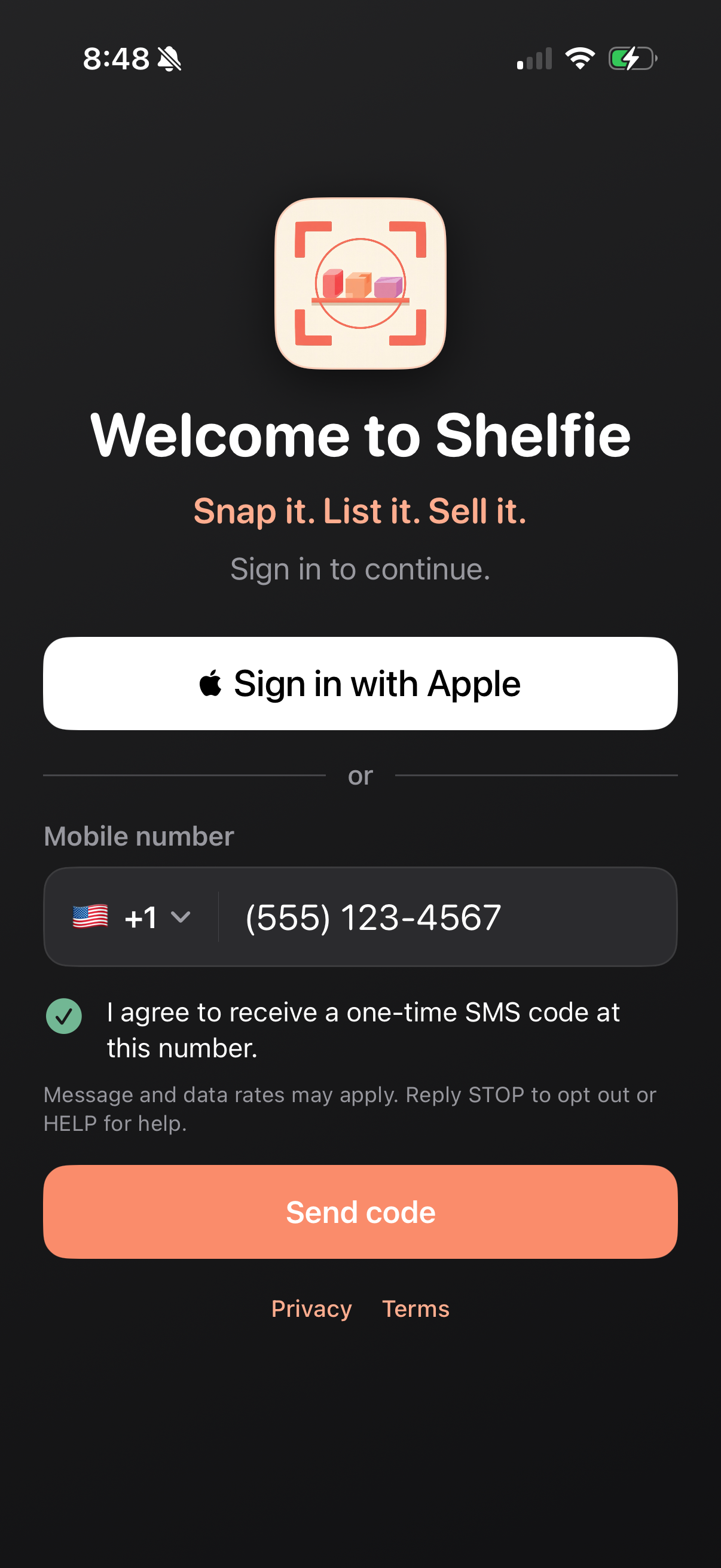
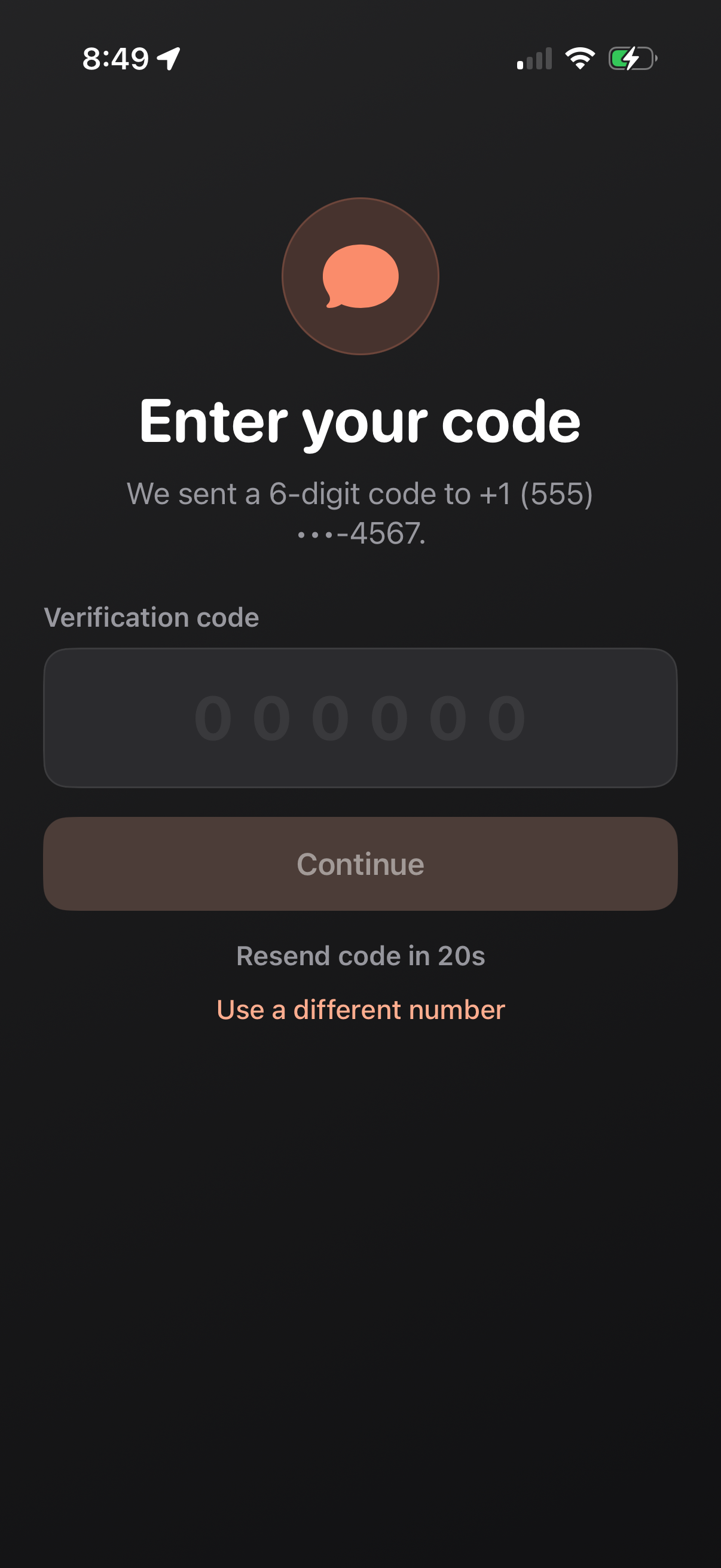
Capture instructions for maintainers: backend/public/sms-opt-in/README.md
Get help
Email support@stelmarlabs.com with your app version and a short description of the issue.
Common topics
- Sign-in code not received — confirm your phone number, check signal, and try again after a minute. If you previously texted STOP, reply START to our sender number before requesting a new code.
- Sign in with Apple failed — confirm you are signed into iCloud on the device, try again, or use phone sign-in if that method is linked to your account.
- Listings missing after reinstall — sign in with the same Apple ID or phone number previously linked to the account to restore synced listings. If you used both methods without linking them first, they may be separate accounts—link methods in Settings while signed in so either works next time.
- Analyze failed — check network, daily analyze limit, and that you are signed in if the server requires it.
- Backup — use Export Backup in the inventory menu to save listings as JSON.
- Delete account — Settings → Delete Account removes your Shelfie cloud data. Marketplace posts you already made stay on those sites.